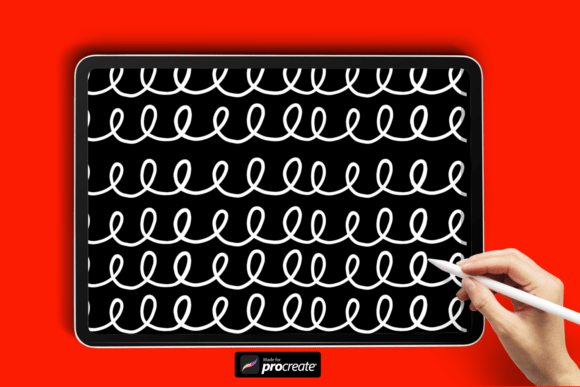
Coquette Swirl Brush for Procreate: Adding Elegance to Digital Art with Seamless Swirls
For digital artists and designers, the right tools can elevate a project from good to extraordinary. The Coquette Swirl Brush for Procreate is one such tool — a specialized brush designed to add movement, sophistication, and charm to digital illustrations, fashion sketches, invitations, and more. Its ability to create continuous, looping swirls makes it a versatile addition to any Procreate workflow, especially when aiming for a polished, luxurious aesthetic.
Understanding the Coquette Swirl Brush
The Coquette Swirl Brush is a custom brush for the Procreate app that produces smooth, flowing swirl lines. Unlike standard brushes that require manual control for every curve, this brush automates the creation of elegant, looping patterns. It’s ideal for borders, ornamental backgrounds, and decorative accents that demand a refined yet playful touch.
This brush is especially useful for designers working in fashion, stationery, and branding, where visual elegance plays a crucial role. The swirl pattern it creates mimics hand-drawn flourishes but with greater consistency and speed, making it a valuable asset in time-sensitive creative projects.
How to Incorporate the Coquette Swirl Brush into Your Workflow
Integrating the Coquette Swirl Brush into your design process is straightforward. Once downloaded and installed, it becomes a permanent part of your Procreate brush library, ready to use in any project that benefits from decorative elements.
Here’s how it fits into a typical digital art workflow:
- Preparation: Before starting your main illustration, set up a dedicated layer for decorative elements. This allows you to edit or remove the swirls independently of your core design.
- During the design phase: Use the brush to create elegant borders, background textures, or embellishments around focal points like logos or characters.
- Post-production: Add the swirls as a finishing touch to enhance visual flow and balance, especially in compositions that feel slightly unfinished or minimal.
Installation and Setup
Getting the brush into your Procreate app is simple:
- Download the ZIP folder containing the .brush file.
- Extract the file on your iPad using the Files app.
- Navigate to “My Files” and locate the .brush file.
- Tap the file to import it directly into Procreate.
Once imported, the brush will appear in your brush library under the “Imported” category. You can rename or organize it into a custom brush set for easier access in future projects.
Using the Coquette Swirl Brush with Other Tools
The Coquette Swirl Brush works best when combined with other tools and brushes within Procreate. For example:
- Layer blending modes: Apply the swirls on a layer set to “Overlay” or “Soft Light” to subtly integrate them without overpowering the rest of the design.
- Color palettes: Pair the brush with muted or metallic tones for a luxurious finish, or with bold colors for a more playful effect.
- Custom textures: Layer the swirl pattern over textured backgrounds to add depth and dimensionality.
Additionally, the brush can be used alongside other design software by exporting your Procreate artwork and incorporating it into Photoshop, Illustrator, or Canva projects. This flexibility makes it suitable for multi-platform workflows, especially for designers who work across different applications.
Practical Use Cases for the Coquette Swirl Brush
While the Coquette Swirl Brush is visually striking, its real value lies in how it enhances specific design tasks. Here are some practical applications:
- Fashion design: Use the brush to create elegant draping effects, decorative accents on garments, or stylish layout borders for mood boards.
- Wedding invitations: Add a touch of sophistication with swirling patterns around text, borders, or background elements.
- Brand assets: Incorporate the swirls into logo designs, social media templates, or packaging graphics for a premium aesthetic.
- Digital illustrations: Enhance character illustrations with flowing hair, magical effects, or dreamy backgrounds.
By integrating the brush into these scenarios, designers can maintain a consistent visual language while reducing the time spent on manual detailing.
Optimizing Usability and Efficiency
To get the most out of the Coquette Swirl Brush, consider the following tips:
- Adjust brush size dynamically: Use Procreate’s pressure sensitivity or stylus tilt features to vary the thickness of the swirls for more organic results.
- Test on different layers: Try applying the brush on multiple layers with varying opacity and blending modes to see which effect works best for your design.
- Customize brush settings: While the brush comes pre-configured, you can tweak settings like grain, opacity, and scattering to match your style.
- Organize your brushes: Create a dedicated folder in Procreate for decorative brushes like this one to streamline access during design sessions.
These adjustments ensure that the brush remains a flexible and efficient part of your toolkit, adapting to different artistic needs without requiring a complete workflow overhaul.
Maintaining Quality and Long-Term Use
One of the key advantages of the Coquette Swirl Brush is its durability and reusability. Once installed, it doesn’t degrade in quality or performance over time. However, to ensure long-term usability:
- Backup your brushes: Regularly export and save your custom brushes, including the Coquette Swirl Brush, to avoid data loss if switching devices or reinstalling the app.
- Update your brush library: As you accumulate more custom brushes, periodically review and organize them to avoid clutter and maintain efficiency.
- Stay updated with Procreate: With each Procreate update, check if your custom brushes remain compatible and adjust settings as needed for optimal performance.
By treating the brush as a long-term asset rather than a one-off tool, you can maintain a streamlined, high-quality design process that supports both creativity and productivity.
Conclusion: A Seamless Addition to Your Design Toolkit
The Coquette Swirl Brush for Procreate is more than just a decorative tool — it’s a practical enhancement that supports both aesthetic appeal and workflow efficiency. Whether you're designing for clients, personal projects, or digital art portfolios, this brush offers a reliable way to add elegance and movement with minimal effort.
Its ease of installation, compatibility with other tools, and adaptability across design styles make it a standout asset for professionals and hobbyists alike. By integrating it thoughtfully into your creative process, you can elevate your designs while maintaining a smooth, efficient workflow that supports both artistic expression and practical execution.